
Part of getting ready for your future MSW student experience involves setting up a variety of technology pieces that are part of the student experience. Please reference the below resources below.
CUNYfirst
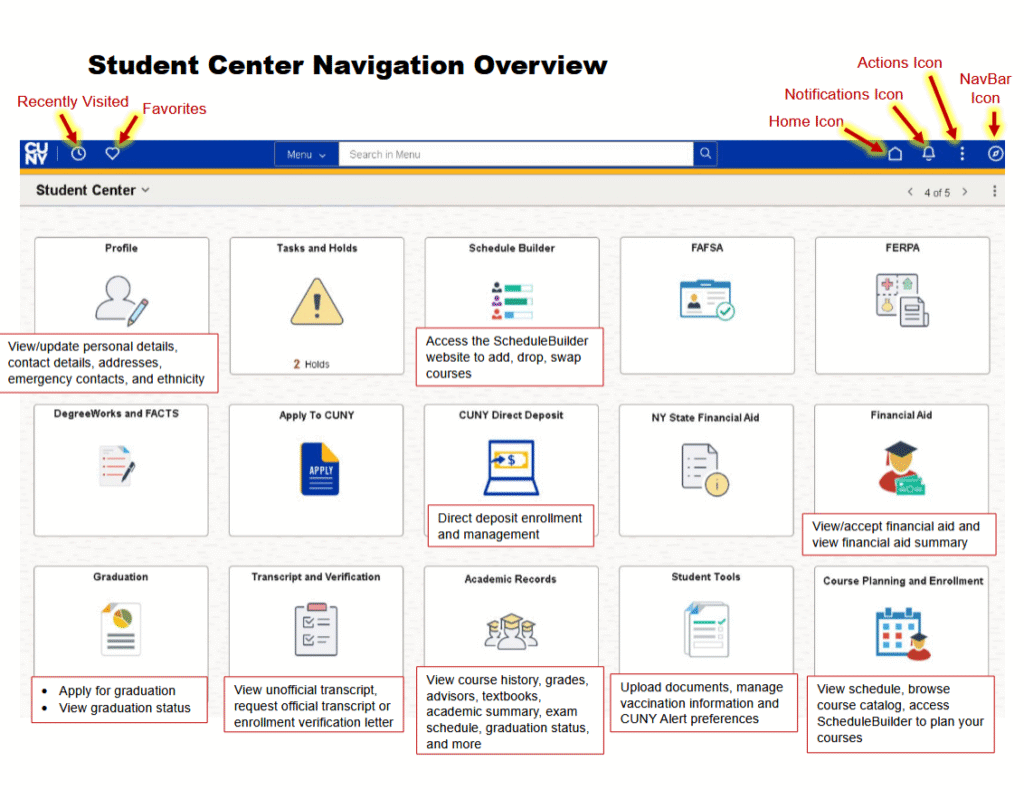
CUNYfirst (Fully Integrated Resources and Services Tool) allows you to manage your academic career and financial account in real time. This is where you will see your final schedule and where you check your financial aid package among other tasks. Please bookmark your Student Center, take time to get to know the platform using resources on the Hunter main site and exploring your Student Center as per below.
Brightspace
Brightspace is the technology platform that CUNY uses for all your course information. Each course you register for will have its own hub of information and way that you connect with your course material. This replaces a previous platform called Blackboard. Please see Resources and FAQs below:
Getting Started in Brightspace for Students:
How do I access Brightspace?
You can access Brightspace by entering your CUNY (City University of New York) credentials, including your username and password, on the login page at https://brightspace.cuny.edu
When Can I see my courses?
As with Blackboard, students cannot see courses that they are enrolled in until professors have made them active. However, as a student you are enrolled in a sample course called “Getting Started in Brightspace for Students.” You can go into the course to see what a Brightspace course looks like and experiment navigating around and taking a quiz.
What resources can I use to get familiar with Brightspace?
- You can bookmark the Brightspace page for future reference; this Hunter Brightspace page has an FAQ section for students at the very bottom.
- You can reference the Hunter Brightspace Student Tutorial
- Watch the video Getting Started with Brightspace for Students
Mobile OneCard Student ID
In order to access Hunter college facilities and services, every student must set up their OneCard. Most users can begin using their Mobile OneCard on their phone in minutes. An approved photo is required. In order to set up your OneCard, multifactor authentication steps and next steps to add to your digital wallet can be found here.
Hunter College Online Bookstore
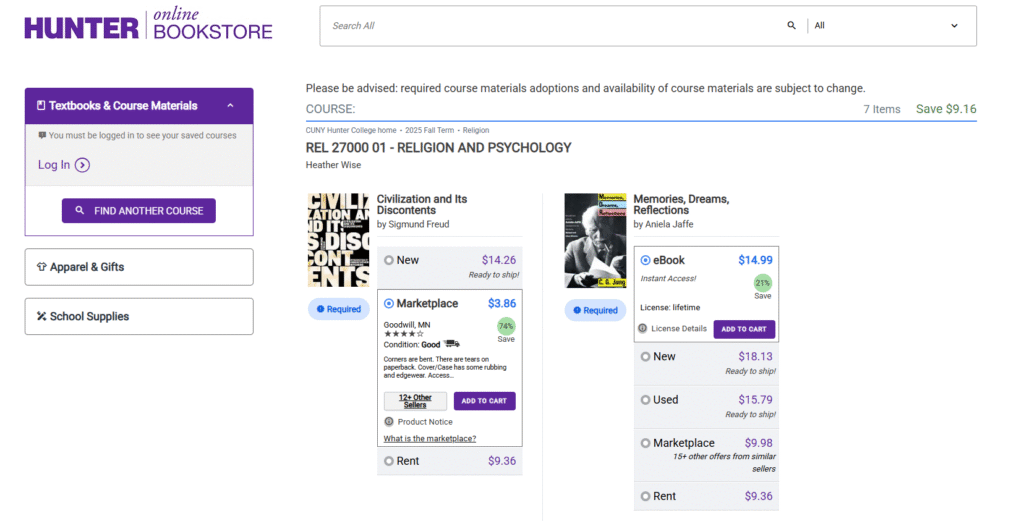
All students registered at Hunter have access to the Hunter College Online Bookstore for your course reading requirements. It is generally recommended that you wait to purchase your books after your classes start so that your Professor can let you know the required and suggested reading list. As you near the start of the semester, you can go to the online bookstore to see which books to purchase online for your courses. Students must use their CUNYfirst login to navigate to the Hunter College Online Bookstore and can find books in new, used, rental or eBook formats.
Add/Update a Preferred Name
Should you wish to be known by something other than your primary (legal) name, you may add your preferred first name and/or middle name directly through your CUNYfirst account. Adding a preferred name to your CUNYfirst account is optional. If you prefer to use your primary (legal) name in daily life, then adding a preferred name is not necessary. Please reference instructions on this page for steps to take.
Your preferred name will be automatically reflected on the following applications:
- Blackboard display name and course roster(s)
- CUNYfirst Student Center
- DegreeWorks
- EAB Navigate app
- FACTS
- Student Support Portal
Additionally, once the above is completed, you can additionally complete the Supplemental Name Change Request Form (click the purple button) if you’d like to update additional fields listed on the webpage including:
- Hunter College (@myhunter) Email Address and Display Name*
- Hunter College NetID
You’ll need to follow the links instructed which will take you to a page where you fill out additional information. Should you come across any difficulty with this process, please reach out to [email protected] by including your EMPL ID and inquiring about the status of your request.
Protect Yourself from Phishing and Scams
As you set up your new myhunter email, please be mindful of frequent suspicious emails and spam that have been ever increasing. Please review the information and be especially mindful of any suspicious job offers, asks to click on unknown links in emails or providing any sensitive information. Always AVOID clicking on links and stay alert; be sure to become familiar with dangers and advice on the page as outlined here.
Make sure to read up on common phishing scams here; report any suspicious activity to the HC Helpdesk portal or call (212) 772-4573.
Free Online Subscriptions
Your @myhunter email allows you access to various subscriptions. Please see below to claim your FREE online newspaper subscriptions:
Financial Times:
https://library.hunter.cuny.edu/news/claim-your-free-online-newspaper-subscriptions-now-financial-times
NY Times Online Access:
https://library.hunter.cuny.edu/news/new-york-times-online-access

This entry is licensed under a Creative Commons Attribution-NonCommercial-ShareAlike 4.0 International license.

